
Download RightToClick – Free Firefox Add‑on to Enable Right‑Click, Copy & Drag
Overview
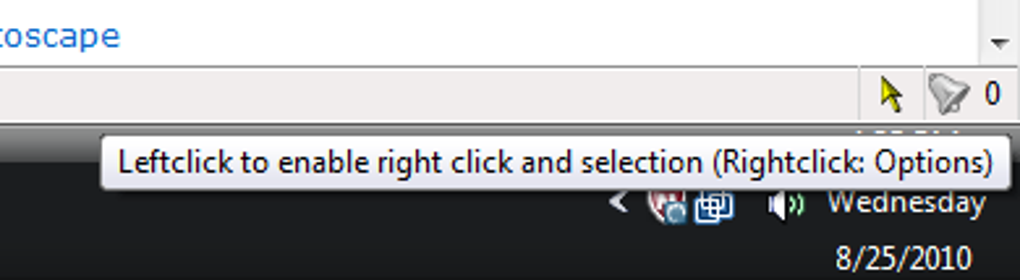
RightToClick is a lightweight, free Firefox add‑on designed to give you back the basic browser interactions that many modern websites try to block with JavaScript. Whether you need to highlight text, copy a URL, drag an image, or simply open the context menu on a site that disables right‑click, RightToClick restores those capabilities with a single click. The extension adds two intuitive icons – one in the navigation toolbar and another in the status bar – that toggle the tool on or off instantly. When activated, the add‑on silently intercepts restrictive scripts, allowing you to interact with page elements as if the site never tried to limit you.
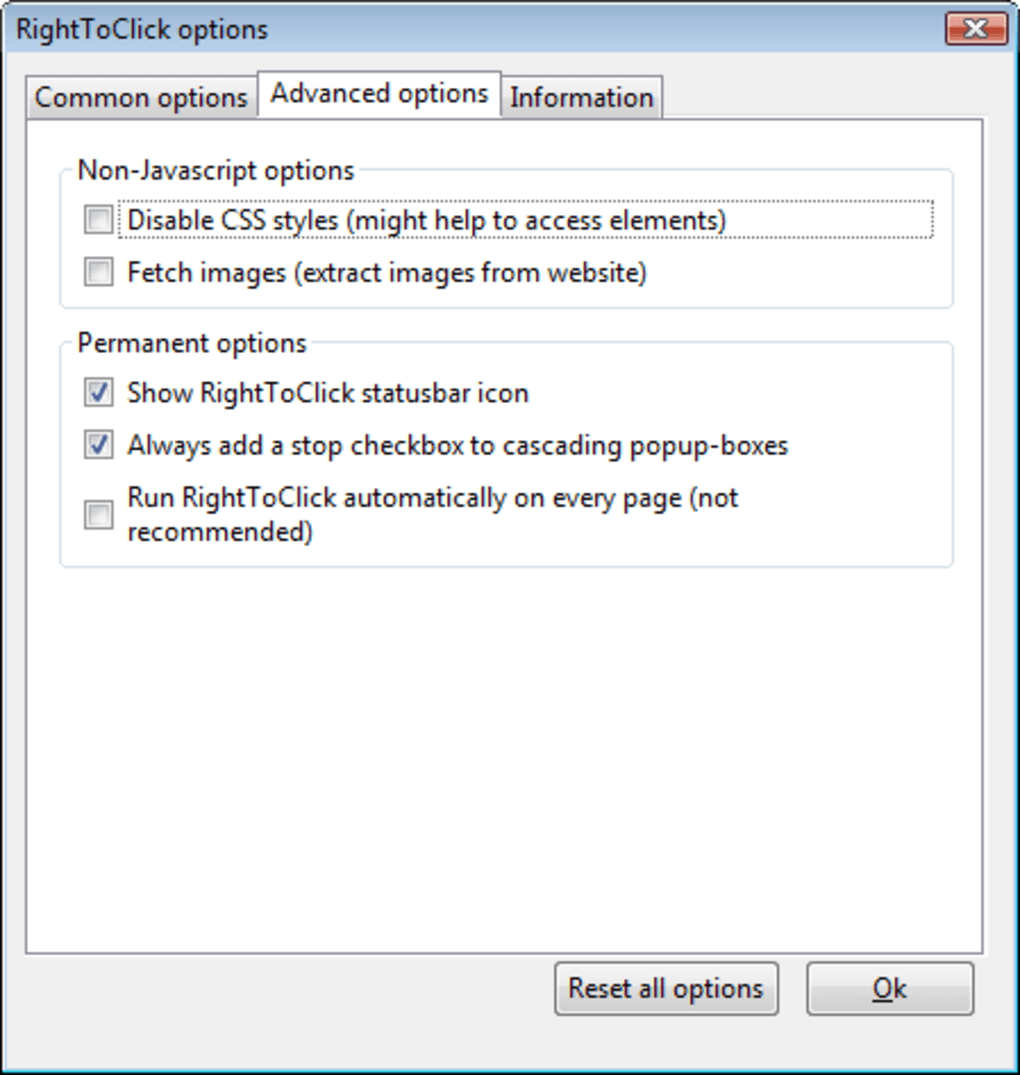
For power users, RightToClick also includes an advanced configuration panel. Although the options are hidden behind a few clicks and are not heavily documented, they let you fine‑tune the behavior for particularly stubborn sites. You can whitelist or blacklist domains, choose which JavaScript events to suppress, and even set custom shortcuts. While beginners may never need these deep settings, they are a valuable resource for developers, researchers, or anyone who frequently works with web‑based tools that impose unnecessary restrictions.
The add‑on is regularly updated to keep pace with Firefox’s security model, ensuring that the tool remains secure and compatible with the latest browser releases. Because it runs entirely within the browser sandbox, there is no separate installer, no extra permissions beyond what Firefox already grants to extensions, and no hidden telemetry. In short, RightToClick offers a secure, hassle‑free way to regain full control over web content, making it an essential utility for anyone who values freedom of navigation on the internet.
Key Features & Advanced Options
- Instant Right‑Click Enablement: One‑click activation restores the context menu on any page, even if the site’s JavaScript tries to block it.
- Copy & Paste Freedom: Highlight and copy text or URLs that are otherwise protected by script‑based selection blockers.
- Drag & Drop Support: Move images, links, and other draggable elements without interference from site restrictions.
- Popup Alert Suppression: Automatically dismisses annoying JavaScript alerts that interrupt workflow.
- Dual Toolbar Icons: Quick toggle from both the navigation bar and status bar for maximum convenience.
- Advanced Configuration Panel: Domain whitelisting/blacklisting, event filtering, custom shortcut assignments, and granular script control.
- Automatic Updates: Secure, seamless updates through Firefox’s add‑on ecosystem keep the tool current with browser changes.
- Lightweight Footprint: Minimal memory usage ensures that your browsing experience stays fast and responsive.
Why the Advanced Options Matter
Most users will be satisfied with the default “on/off” functionality, but the hidden configuration panel becomes crucial when dealing with highly customized web applications. For example, a developer testing a single‑page app may need to disable only specific mouse events while preserving others. RightToClick’s granular event filter lets you choose to block contextmenu, selectstart, or dragstart individually, giving you surgical precision.
The domain whitelist is another powerful feature. If you work with a trusted internal portal that already respects standard browser behavior, you can add it to the whitelist to keep the add‑on disabled automatically, reducing the chance of unintended side effects. Conversely, a blacklist can be used for sites where you never want RightToClick to interfere, such as banking portals that implement additional security checks.
All of these capabilities are delivered through a clean, responsive interface that respects Firefox’s native UI guidelines. Even though the settings are “deep” compared to most extensions, they are logically grouped and searchable, making the learning curve manageable for anyone willing to spend a few minutes exploring.
Installation, Configuration & Compatibility
Step‑by‑Step Installation
- Open Firefox and navigate to the official RightToClick add‑on page.
- Click the “Add to Firefox” button. Firefox will prompt you to confirm the installation and display the permissions required.
- Accept the permissions and click “Add.” The add‑on will download, install, and automatically place two icons: one in the navigation toolbar and one in the status bar.
- Refresh any open tabs to ensure the extension is active. You’ll see a small tooltip confirming that RightToClick is ready to use.
Initial Configuration
After installation, you can toggle the extension with a single click on either icon. For most users, this is sufficient to regain right‑click functionality immediately. If you wish to explore the advanced settings, click the gear icon that appears next to the toolbar button. This opens the configuration panel where you can:
- Enable or disable specific event blocks (e.g.,
contextmenu,selectstart). - Add domains to the whitelist or blacklist.
- Set a custom keyboard shortcut for quick activation.
- Export or import your configuration as a JSON file, useful for syncing settings across multiple machines.
Operating System Compatibility
RightToClick runs on any operating system that supports the Firefox browser, including Windows 10/11, macOS Catalina and later, Linux distributions (Ubuntu, Fedora, etc.), and even Firefox for Android (though the add‑on UI is currently limited to desktop browsers). The extension leverages Firefox’s WebExtensions API, meaning it benefits from the same security model as the browser itself, keeping your system safe from malicious code.
Updates & Security
Because RightToClick is distributed through Mozilla’s official add‑on store, updates are delivered automatically and signed by Mozilla. This ensures that you always receive a secure, verified version without the need for manual downloads. The add‑on does not collect personal data, and its permissions are limited to modifying page scripts in order to restore default browser behavior. Users can review the source code on the project’s GitHub repository for full transparency.
Pros, Cons & Frequently Asked Questions
Pros
- Restores right‑click, copy, and drag‑and‑drop instantly.
- Free and open‑source, with no hidden fees.
- Lightweight and does not slow down browsing.
- Advanced configuration for power users.
- Secure updates via Mozilla’s add‑on ecosystem.
Cons
- Advanced settings are hidden and lack detailed documentation.
- Only available for Firefox; no native Chrome or Edge version.
- May conflict with other extensions that also manipulate JavaScript events.
- Limited functionality on mobile browsers.
FAQ
Is RightToClick safe to use?
Yes. The add‑on is reviewed by Mozilla, signed with a verified certificate, and does not collect personal data. It only modifies page scripts to restore standard browser behavior.
Can I use RightToClick on Chrome or Edge?
Currently RightToClick is built exclusively for Firefox using the WebExtensions API. There are no official Chrome or Edge versions, though similar functionality may be available in other extensions.
How do I disable RightToClick for a specific site?
Open the configuration panel (gear icon) and add the site’s URL to the blacklist. This prevents the add‑on from interfering with that domain while keeping it active elsewhere.
Will RightToClick affect page performance?
The extension has a minimal memory footprint and only runs when you enable it. In most cases, users notice no performance degradation, even on media‑rich pages.
Is there a way to export my custom settings?
Yes. Within the advanced configuration panel you can click “Export Settings” to download a JSON file, which can later be imported on another Firefox installation.
Conclusion & Call to Action
RightToClick fills a niche that many modern websites have unintentionally created – the removal of basic browser interactions through aggressive JavaScript. By offering a simple toggle, a set of powerful advanced options, and a secure, free distribution model, the add‑on empowers both casual users and developers to reclaim control over web content. Its lightweight design ensures that you won’t notice any slowdown, while the automatic updates keep the tool compatible with the latest Firefox releases.
If you frequently encounter sites that block right‑click, copy, or drag actions, installing RightToClick is a straightforward way to improve your browsing experience. The installation process takes less than a minute, and the learning curve is shallow unless you decide to explore the deeper configuration panel. Give it a try today and enjoy a more open, flexible internet.
Ready to download? Visit the official Mozilla Add‑ons page, click “Add to Firefox,” and start using RightToClick immediately. Experience a hassle‑free, secure way to navigate any website without restrictions.
Pros: Restores right‑click, lightweight, free, advanced options.
Cons: Documentation for advanced settings is sparse; Firefox‑only.







